Google Photos Now Lets You Describe Exactly How to Edit Your Pictures
Not everyone’s a pro photo editor—but now you can just ask an AI to do the work for you.
Plenty of people have a clear vision for their unedited photos: They know exactly how they want the final shot to look. The problem? They don’t have a clue how to actually make that happen with editing tools. All those sliders, filters, and technical settings can feel so overwhelming that it’s easy to give up before even trying.
But what if you could just tell Google Photos, “Make the sky bluer” or “Get rid of that random object in the background”? Now you can—thanks to a new update rolling out to the app. Just describe what you want, and Photos will transform your pictures to match your vision.
Ask Nicely, and Photos Will Do the Rest
At first, this conversational editing feature was a Pixel 10 exclusive—another case of what feels like “Pixel privilege.” Google often uses its Pixel lineup as a testing ground for ambitious AI tools: Think Magic Eraser (which wipes out unwanted objects) or Best Take (which picks the best faces from group shots). Most of these features start as Pixel-only before slowly making their way to other devices.
The good news? Google confirmed this latest tool will soon reach other Android devices in the U.S.
So what is conversational editing, exactly? It’s an AI-powered tool that lets you edit photos by simply describing changes you want. For example, you could say, “Remove the bikes in the background,” “Brighten up the sky,” or “Make this look like a vintage polaroid.” The app interprets your request and shows you the edited photo in seconds—and if you want to tweak it more, you can follow up with extra instructions.
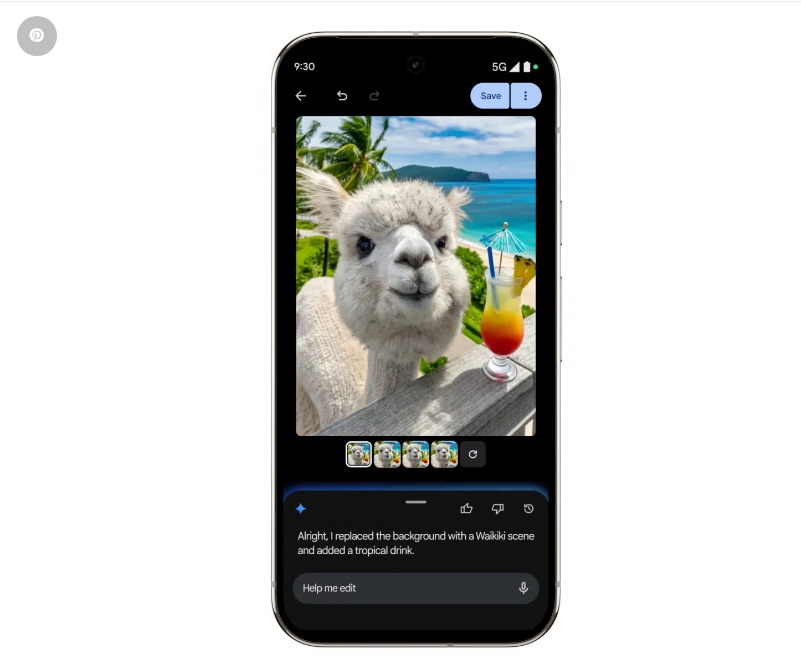
When the feature launches for your device, here’s how to use it: Open a photo, tap “Help me edit,” then either type or speak your request.
Google showed off the tool in a demo video: It started with an alpaca on a farm, then the app got a simple command: “Make it look like he’s on vacation in Waikiki.” The AI did three things: It cut the alpaca out of its farm setting, generated a brand-new tropical beach background, and even added a tiny cocktail to sell that “vacation vibe.”
To be fair, the result was polished enough that someone who’s never seen AI edits (or an alpaca sipping a drink) might just think it’s real. That’s why Google added a safeguard: C2PA Content Credentials. Now, every time you take or edit a photo on a Pixel 10, the image comes with a digital “receipt.” This receipt shows when the photo was taken, what edits were made, and whether AI was used to create or modify it.
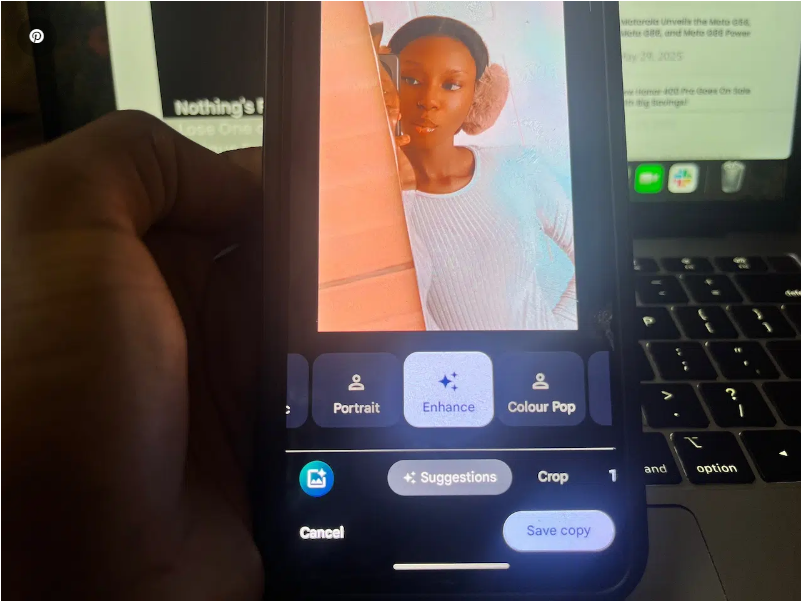
Google Photos Has More Editing Tools Up Its Sleeve
Even before conversational editing hits your device, Google Photos already has around 30 different editing tools to play with. While you’re editing a photo, just tap the search icon to see all of them. Here are a few key ones:
- Filters: Pick from dozens of styles to give your photos a specific aesthetic (think warm, moody, or vibrant).
- Sky Styles: Completely change how the sky looks—swap a gray overcast for a bright blue, or add a sunset glow.
- Vignette: Darken the edges of your photo to draw focus to the center, or give it a retro feel.
- Magic Eraser: Erase unwanted objects, people, or even power lines from your shots.
- Move: Reposition a selected part of the photo (like a person or a plant) or resize it.
- Portrait Blur: Blur the background of portrait photos to make the subject stand out.
- Mirror: Flip your image horizontally (great for fixing photos where text or logos are reversed).
A Few Things to Keep in Mind
Before you dive in, there are two important notes:
- You need to upload your photo first: You can’t use these editing tools on a photo that’s only stored on your phone—you have to upload it to Google Photos first.
- Edits happen on Google’s servers: Unlike simple tweaks (like adjusting brightness or cropping), these edits aren’t processed directly on your phone. They need to be sent to Google’s servers to work.
Also, don’t expect miracles: The quality of your edited photo depends heavily on the original shot. Even with all of Google’s AI magic, the app can’t fix a low-resolution photo or one that’s blurry from bad lighting.
In short, if you’ve ever stared at photo editing tools and thought, “I wish I could just tell it what to do,” Google Photos’ new feature is exactly what you’ve been waiting for.